A password manager with iCloud sync keeps your encrypted vault in the iCloud storage that already comes with your Apple ID, so there is no vendor account and no vendor server holding a copy. Apple Passwords does this for logins, and a few independent apps do it for a full vault: our own Zen Passwords syncs through your private CloudKit database, Strongbox through its CloudKit-based Strongbox Sync, and Enpass through an encrypted file in your iCloud. 1Password, Bitwarden and Proton Pass sync through servers their makers run.
Below: how iCloud sync works under the hood, what Apple can see, where each popular manager keeps your vault, and how to set it up on iPhone, iPad and Mac. Competitor details come from their own documentation and App Store listings as of 16 November 2026.
Three places a vault can sync: their cloud, your cloud, nowhere
Every password manager answers one question differently: when you add a login on your iPhone, where does the copy go so your Mac can get it? There are only three answers, and each moves the risk somewhere else.
| Model | Who runs the server | Account needed | Examples |
|---|---|---|---|
| Vendor cloud | The password manager company | Yes, with the vendor | 1Password, Bitwarden cloud, Proton Pass |
| Your cloud | Apple (or another storage provider you pick) | Your existing Apple ID | Zen Passwords, Apple Passwords, Strongbox, Enpass, Secrets |
| Self-hosted | You | On your own server | Bitwarden self-hosted |
| No sync | Nobody | None | Any of the offline-first apps with sync off |
Vendor clouds are not careless. 1Password says everything in an account is end-to-end encrypted and protected by a 128-bit Secret Key, and Proton says Pass data is "never available to Proton". What changes with your-cloud sync is the shape of the target. A vendor server holds millions of vaults behind one company, so it is worth attacking. Your private iCloud database holds one vault, yours, and the company that made the app has no copy to lose, sell or be ordered to hand over.
If you would rather have no copy anywhere, our guide to an offline password manager for iPhone covers that route and the backup job that comes with it. This piece is for people who want their vault on every Apple device without trusting one more company with it.
How CloudKit private-database sync works
CloudKit is the Apple framework apps use to store data in iCloud. Each app gets a container, and inside it every user has a private database. Apple's developer documentation is direct about who can reach it: "Only the user can access their private database, by default", and data in it "isn't visible in the developer portal." The developer who wrote the app cannot browse your records, and the data counts toward your own iCloud storage quota, so you pay Apple for the space, if anything, and nobody else.
That is the plumbing. The question that matters for passwords is what sits inside it. Zen Passwords encrypts the vault on the device, with keys derived from your master password using Argon2id, before anything is handed to CloudKit. iCloud receives ciphertext and nothing else. When your Mac pulls the change down, it decrypts it locally with the same master password.
- You add or edit an item on your iPhone. The app encrypts it on the device.
- The encrypted record is saved to the private CloudKit database under your Apple ID.
- Your iPad and Mac, signed into the same Apple ID with sync on, fetch the new record when they have a connection.
- Each device decrypts it locally. The master password never leaves any of them, and we never receive it.
What Apple can see, with and without Advanced Data Protection
Apple encrypts all iCloud data, but who holds the keys depends on the category and on one setting. Under standard data protection, Apple says third-party app data stored in iCloud is "always encrypted in transit and on server", with the keys kept in Apple's data centers so it can help you recover data. Turn on Advanced Data Protection and Apple adds that CloudKit encrypted fields and assets become end-to-end encrypted, with keys only on your trusted devices.
Apple's security guide adds two details worth knowing. CloudKit fields are end-to-end encrypted under Advanced Data Protection only when the developer declares them as encrypted, and some metadata, such as when something was modified, stays under keys Apple holds even with it on.
| Vault data in iCloud | Standard data protection | Advanced Data Protection |
|---|---|---|
| Apple Passwords (iCloud Keychain) | End-to-end encrypted | End-to-end encrypted |
| App that uploads plain CloudKit records | Readable with Apple-held keys | Encrypted fields protected; others not |
| Zen Passwords (encrypted before upload) | Ciphertext only | Ciphertext only |
| Metadata such as modification dates | Apple-held keys | Apple-held keys |
This is why "syncs through iCloud" is not a security claim on its own. An app that leans on iCloud for encryption is only as private as your iCloud settings. An app that encrypts first, as Zen Passwords and Enpass do, keeps the vault sealed whatever Apple holds. Advanced Data Protection is still worth turning on for the rest of your iCloud; Apple's setup guide lists the requirements, including a recovery contact or recovery key and two-factor authentication.
The new risk: your Apple ID, and how the Secret Key answers it
Moving sync into your iCloud moves the front door too. Anyone who takes over your Apple ID could, in principle, reach the encrypted vault records. Two layers stop that from being enough.
- The vault is sealed with keys from your master password, which Apple never sees and we never receive.
- Zen Passwords adds a 130-bit Secret Key, 26 characters, generated on your device and never uploaded or synced. Your master password and the Secret Key together open the vault, so even a correctly guessed master password is useless without it.
- The Secret Key is asked for when you add a new device, open the web vault or restore a backup, so daily unlocking stays quick.
Vaults created since August 2026 get a Secret Key by default; older vaults can turn it on in Settings > Security & lock in about two minutes. The full reasoning is in our two-key vault design write-up. Protect the Apple ID itself with two-factor authentication and a strong password regardless; it guards your photos and mail as well.
Password managers and iCloud sync, compared
Here is where each well-known manager keeps the synced copy of your vault, from each company's documentation and US App Store listing as of 16 November 2026.
| App | Sync goes through | Vendor account | Holds more than logins | Platforms |
|---|---|---|---|---|
| Zen Passwords (ours) | Your private CloudKit database, or local only | None | Cards, banks, IDs, Wi-Fi, licences, notes | iPhone, iPad, Mac |
| Apple Passwords | iCloud Keychain | Apple ID only | Built around credentials | Apple devices, Windows |
| Strongbox | Strongbox Sync (CloudKit), or a file in your cloud | None | KeePass entries | iPhone, iPad, Mac |
| Enpass | Encrypted vault file in iCloud or another cloud | None for personal use | Yes | Apple, Windows, Android, Linux |
| 1Password | 1Password servers | Required | Yes | All major platforms |
| Bitwarden | Bitwarden cloud (US or EU), or self-hosted | Required | Yes | All major platforms |
| Proton Pass | Proton servers | Required | Yes | All major platforms |
Apple Passwords and iCloud Keychain
Apple Passwords is the default answer, and for logins it is a strong one. iCloud Keychain is end-to-end encrypted under standard data protection, and the Passwords app listing says it syncs to your other Apple devices and to Windows. It is free and built in. Its limit is scope: it is built around credentials, with no home for bank details, ID documents, software licences or photo attachments. Our piece on whether Apple Passwords can store credit cards shows where that bites, and the Zen Passwords vs Apple Passwords comparison goes item type by item type.
Strongbox: from iCloud Drive files to CloudKit
Strongbox is a KeePass app for Apple devices, and its history shows why CloudKit matters. It used to keep databases as files in iCloud Drive. Its own help center now says, "We can no longer recommend that you use iCloud or the Files method for storing your database", and recommends Strongbox Sync instead. Per the Strongbox Sync FAQ, it uses CloudKit behind the scenes, counts toward your iCloud quota, shows no visible file in iCloud Drive, is free, and works only inside Strongbox. The app itself is a free download with a Pro upgrade. Choose it if you already live in KeePass files.
Enpass: your cloud, any platform
Enpass has the same core idea as Zen Passwords: no vendor-hosted vault. Its security white paper says Enpass "does not store your Vaults on its own servers" and that your cloud "always contains the same encrypted vault file that resides on your device", with iCloud one option among OneDrive, Google Drive, Dropbox, Nextcloud, WebDAV and others. Its advantage is reach: it runs on Windows, Android and Linux. If you need that, Enpass is the better pick; the Zen Passwords vs Enpass comparison covers the rest, including key derivation.
Secrets and KeePassium
Two more Apple-platform apps keep their maker out of sync. Secrets says passwords are "never synced with our servers" and are encrypted and saved in iCloud if you sync. KeePassium opens a KeePass file wherever the Files app can reach, iCloud Drive included, so the sync is whatever your file provider does.
1Password, Bitwarden and Proton Pass
These three sync through accounts on their own servers, and all three encrypt end to end. 1Password once let you keep a standalone vault in iCloud or Dropbox; a 1Password employee confirmed in April 2023 that "1Password 8 does not support standalone vaults", and today sync comes with a 1Password membership. Bitwarden offers US and EU cloud regions and a self-hosted server for people who run their own infrastructure. Proton Pass syncs through your Proton account. Pick one of these if you need Windows, Android, browser extensions or shared family vaults; Zen Passwords has none of those. If you are leaving one, see how to move from 1Password or Bitwarden, or the 1Password, Bitwarden and Proton Pass comparisons.
Setting up iCloud sync on iPhone, iPad and Mac
In Zen Passwords, sync starts when the device is signed in to iCloud. To add a second device:
- Check that every device is signed into the same Apple ID. Two Apple IDs mean two separate vaults that will never meet.
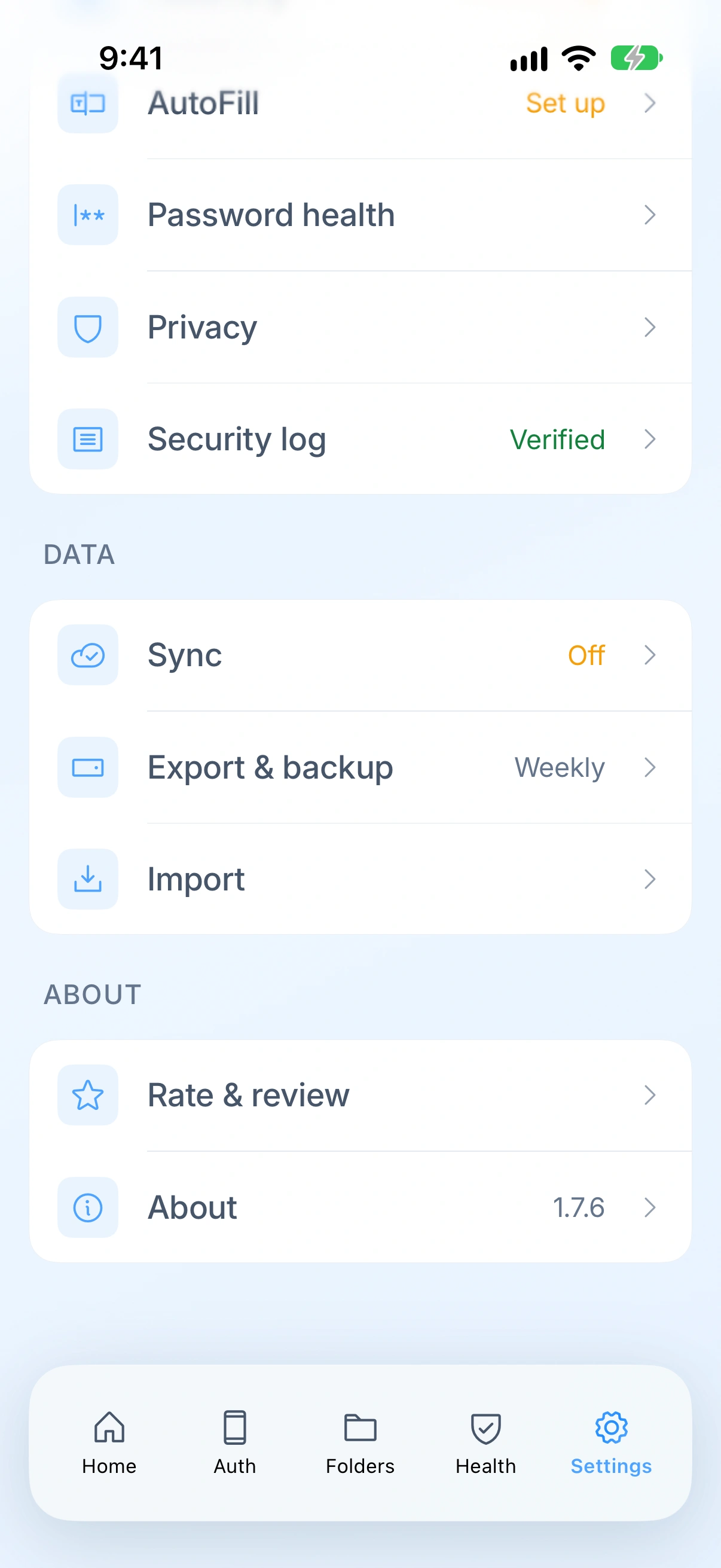
- On the device that already has your vault, open Settings > Sync and check it says iCloud sync. If it shows Not syncing, tap Open iOS Settings and allow iCloud for your Apple ID. Leave the app open while the first pass runs on a large vault.
- Install Zen Passwords on the iPad or Mac and open it with the same master password. If your vault has a Secret Key, the new device asks for it once.
- Turn on AutoFill on that device too. It is a system setting per device, so it does not travel with the vault.
- Add a throwaway test entry on one device and confirm it arrives on the other, then delete it. The deletion will travel too.
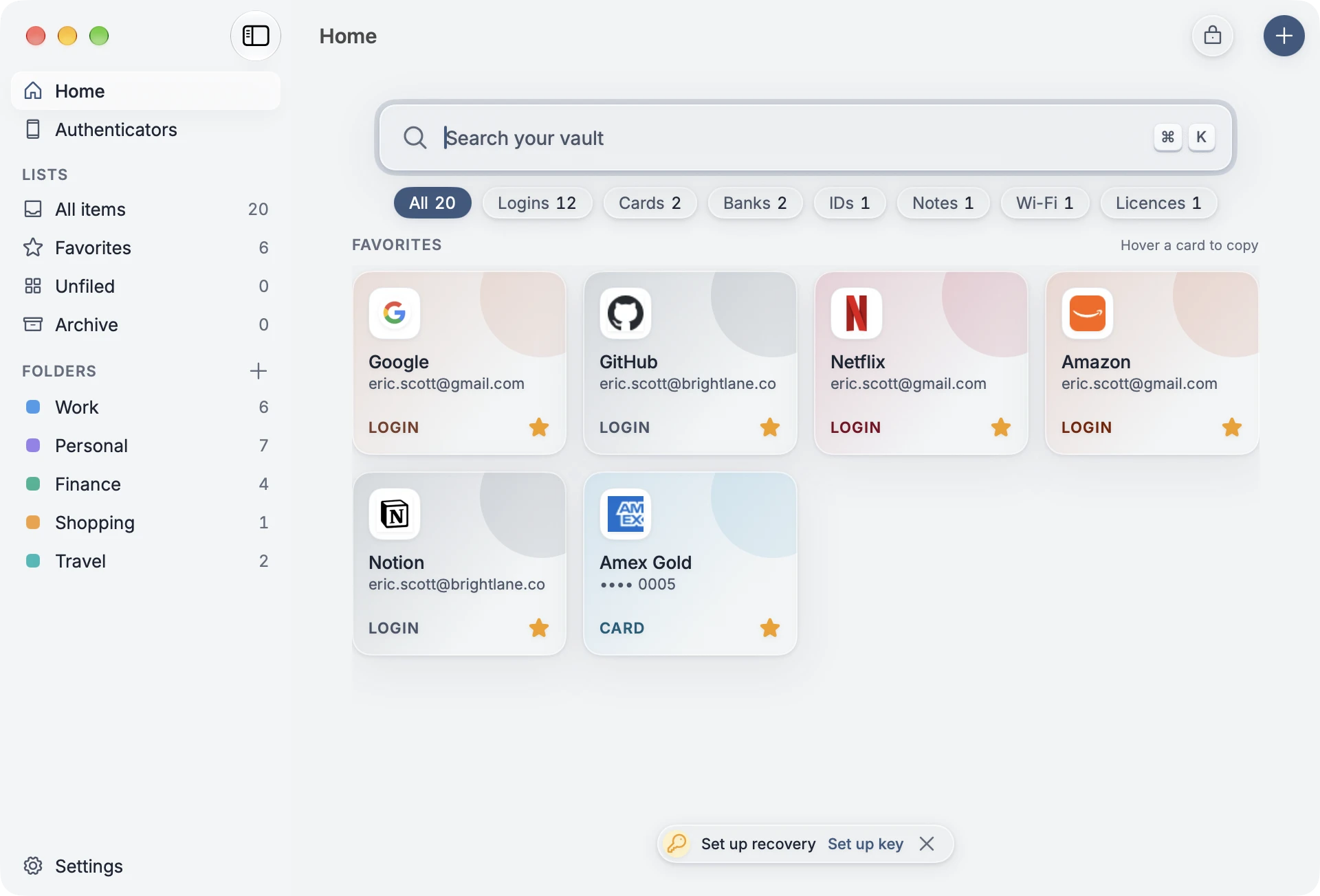
The iCloud sync support guide and AutoFill setup guide have the same steps with more detail.
When one device is behind
Because there is no Zen server, there is no queue we can flush for you. Almost every case comes down to four checks, in this order: the same Apple ID on both devices, iCloud allowed for Zen Passwords on both, a network connection since the change, and free space in your iCloud storage. CloudKit data counts against your quota, so a full iCloud leaves new changes stuck on the device that made them. The sync troubleshooting guide walks through each one.
Who should choose something else
- You use Windows, Android or Linux. Zen Passwords runs on iPhone, iPad and Mac, and can be read, not edited, in a browser at zenpasswords.com/vault; Enpass or Bitwarden reach those platforms.
- You share passwords with family or a team. Zen Passwords has no shared vaults; Apple Passwords, 1Password and Bitwarden do.
- You browse in Firefox or a Firefox-based browser on the Mac. macOS AutoFill providers do not work there yet (Mozilla bug 1650212).
- You only need logins on Apple devices and nothing else. Apple Passwords is free, built in and end-to-end encrypted.
For everyone else on Apple devices who wants a full vault with no vendor account, Zen Passwords is free for five active items, with sync, AutoFill, backups and recovery included. Premium removes the limit and adds the breach check; Apple shows the price before you buy. See the screens on the Zen Passwords app page or get it on the App Store.
Questions
Is there a password manager that syncs through iCloud instead of its own servers?
Yes. Zen Passwords syncs through your private CloudKit database under your Apple ID, Strongbox uses CloudKit-based Strongbox Sync, Enpass keeps an encrypted vault file in your iCloud, and Apple Passwords uses iCloud Keychain. None of them need a vendor-hosted vault.
Is iCloud Keychain end-to-end encrypted?
Yes. Apple lists Passwords and Keychain as end-to-end encrypted even under standard data protection, so Apple does not hold the keys. Most other third-party app data in iCloud is end-to-end encrypted only with Advanced Data Protection on.
Can Apple see my passwords if my password manager syncs with iCloud?
Not if the app encrypts the vault before upload. Zen Passwords and Enpass send only ciphertext to iCloud, so Apple stores data it cannot read, whatever your Advanced Data Protection setting.
Does password manager iCloud sync use my iCloud storage?
Yes. Apple says data in an app's private CloudKit database counts toward your own iCloud quota. A password vault is small, but a full iCloud can stop new changes from syncing.
Does iCloud password sync work on Windows or Android?
Apple Passwords syncs to Windows through iCloud for Windows, and Enpass runs on Windows and Android. Zen Passwords and Strongbox are apps for iPhone, iPad and Mac; Zen also lets you read your vault, not edit it, in any browser at zenpasswords.com/vault.
What happens to my vault if I lose access to my Apple ID?
Sync depends on your Apple ID, so keep scheduled encrypted backups in a place you control. A Zen Passwords backup opens with your master password and Secret Key, and the open-source zen-cli can read it on a Mac or Linux with no app and no account.