Most password managers sync through the company that sells you the app. This one does not have anywhere to sync to, so it uses the storage you already have. There is nothing to turn on in the app: it uses the iCloud account your device is already signed into, so your other device needs to be signed into the same Apple ID.
Turning it on
- Check both devices are on the same Apple IDThis is what makes them the same vault. Two devices on two different Apple IDs will never see each other, and it is the reason sync appears to do nothing more often than any actual fault.
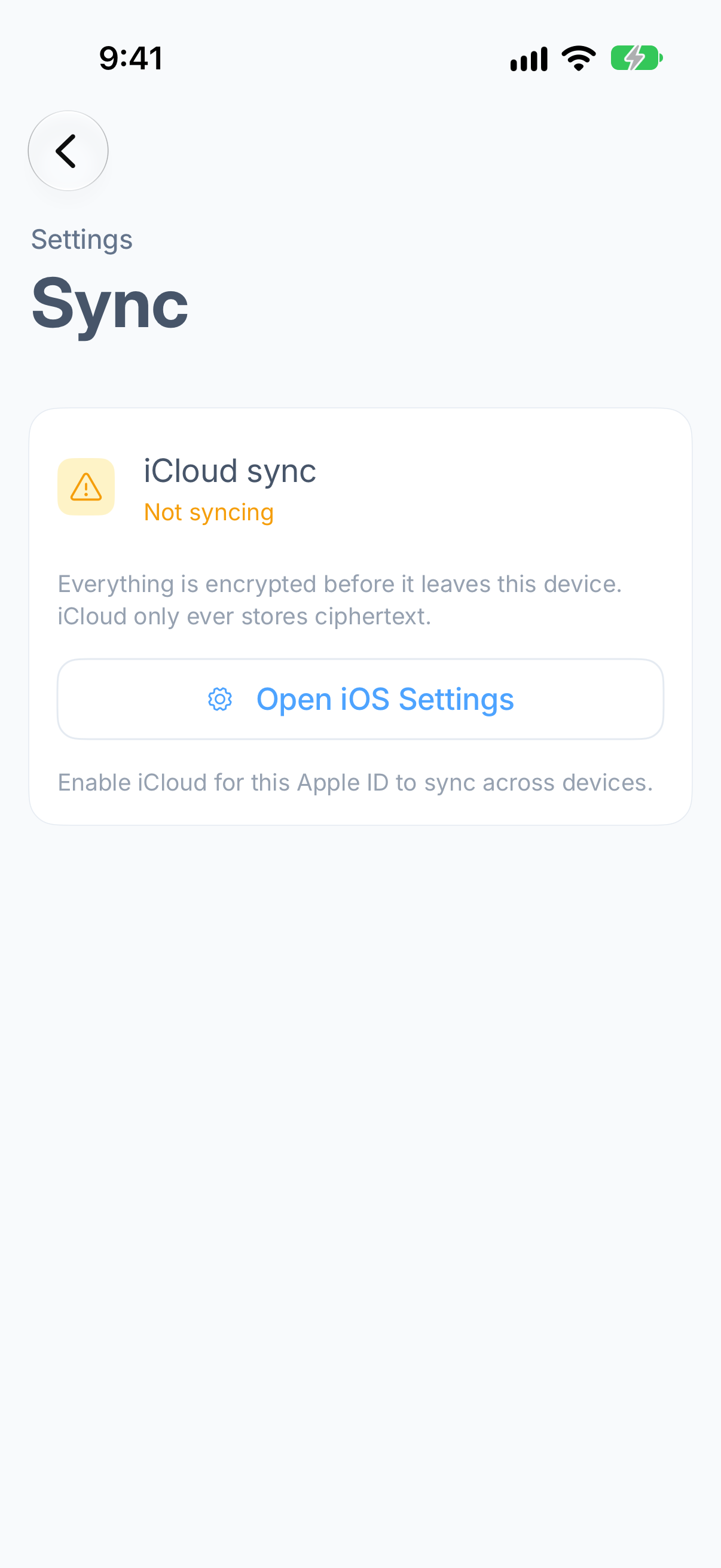
- Check Settings, then SyncIt should say iCloud sync with a last synced time. If it says Not syncing, sign this device into iCloud, then quit and reopen Zen Passwords. Tap Sync now to push changes right away, and give a large vault a moment for its first pass.
- Open the app on the second deviceOn the welcome screen tap Sign in to existing vault, then enter the same master password and the Secret Key from your Emergency Kit. The vault is encrypted in transit and at rest, so those two are what make it readable at the other end.
What travels and what does not
Vault contents sync as encrypted data. What does not travel is anything device specific: the AutoFill provider setting has to be turned on separately on each device, because that is a system setting rather than something in the vault.
Working offline
Day to day use needs no network at all, because the vault is on the device. iCloud only needs a connection when devices have to catch up with each other.
Verify a change on the second device
Create a harmless test entry on the first device and confirm it arrives on the second. If it does not, use the sync troubleshooting guide. Once the entries match, enable AutoFill separately on that device.