Sync and backup solve different problems and it is worth being clear which one you have. Sync keeps your devices matching, including matching a deletion. A backup is a copy of a moment you can return to.
A backup right now
- Choose where it goesYou pick the folder. On a Mac that might be a local folder or somewhere in your own cloud storage; the file is encrypted either way, so where it lands is your call rather than a security decision.
- ExportThe file that comes out is encrypted with your master password. Unlike the plain text export most password managers hand you when you leave, this one is not readable by anything that finds it.
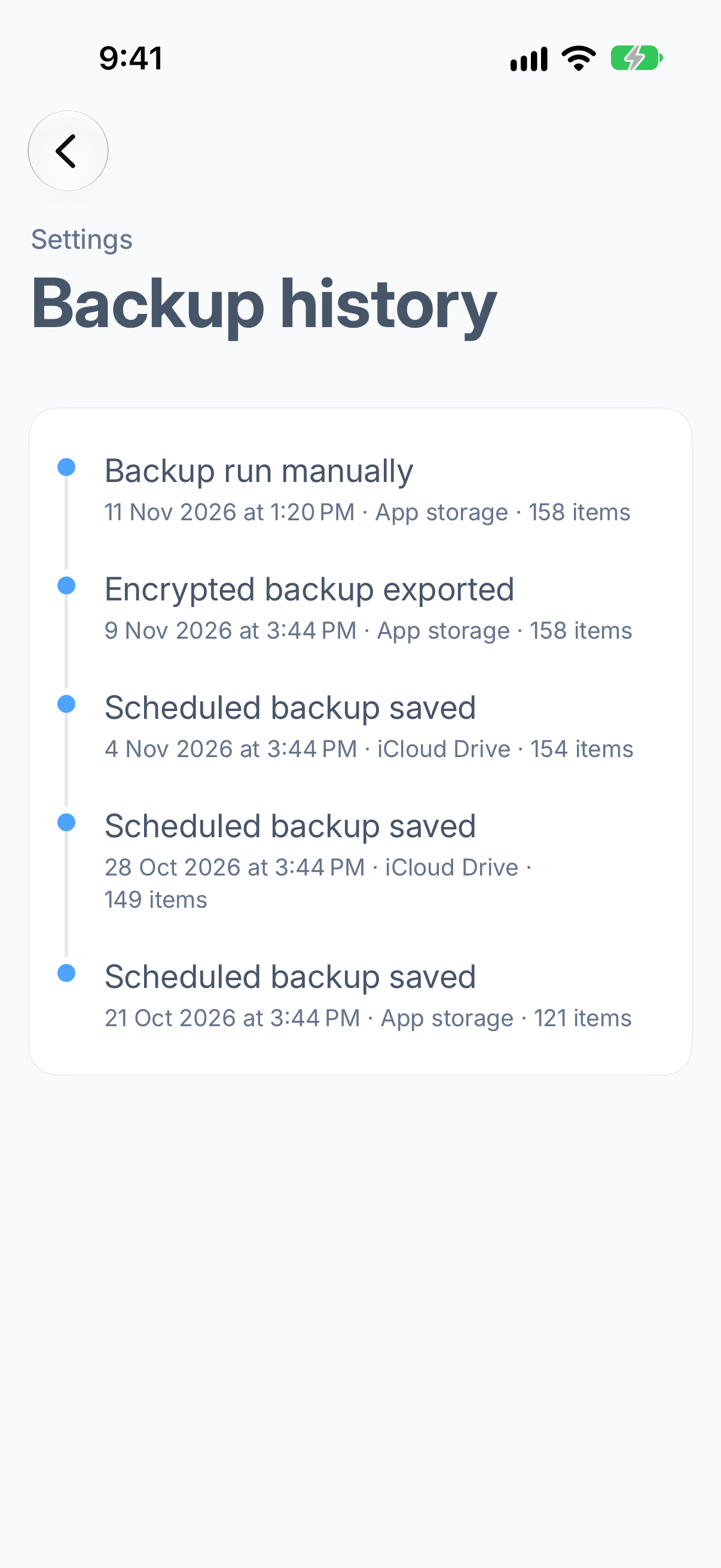
- Check the historyThe app lists your recent backups, up to the last 60, with when and where each was saved. Worth a glance occasionally, because a scheduled backup that quietly stopped running looks exactly like one that is working.
On a schedule
Scheduled backups are on weekly by default and save in app storage unless you pick a folder, which is the version most people should use. A due backup runs the next time you open Settings, so open it now and then. A backup you have to remember to make is a backup that is three months old on the day you need it.
Restoring
Go to Settings, then Import, then Import encrypted backup. A backup of this same vault merges straight in. A backup of a different vault asks for the master password it was made under and replaces everything in the current vault. If you changed your master password after that backup was made, it is the old one that opens it.
Before troubleshooting sync or access
A backup preserves a copy; it does not reset its encryption. Keep your master password and your Emergency Kit, which holds the Secret Key, somewhere you can reach without this device. For a missing update, follow sync troubleshooting. For lost access, follow the master-password recovery guide.