No. Apple Passwords cannot store credit cards. The Passwords app holds logins, passkeys, verification codes and Wi-Fi passwords, and it has no card item. On iOS 26 and iOS 27 your iPhone keeps card numbers in the Wallet app, under AutoFill, where they sync through iCloud Keychain and fill in at checkout. Bank account details, passport numbers and most other documents have no structured home in either app.
That split catches people out, because many guides still send you to a Safari setting that moved. Below is where each kind of detail lives on an iPhone and Mac today, checked against Apple Support on 14 November 2026, what Apple handles well for free, and what to use for everything it leaves out: Zen Passwords keeps cards, bank details, IDs and logins in one encrypted vault.
Where your iPhone keeps card details today
There are three Apple places a card can end up, and they do different jobs. Knowing which one holds what saves a lot of searching through Settings.
| Kind of detail | Apple Passwords app | Wallet | Where else |
|---|---|---|---|
| Card number and expiry for typing into forms | No card item | Wallet > AutoFill cards | Mac: System Settings > Wallet & Apple Pay |
| Card security code (CVV) | No | AutoFill can enter it at checkout | Older guides say Safari never saves it; that no longer matches Apple’s page |
| Card for contactless and Apple Pay | No | Apple Pay, using a Device Account Number | Supported cards and regions only |
| Bank account, routing, IBAN or sort code | Only as free text in a login’s Notes | No field for it | A locked note in Notes |
| Driver’s license or state ID | No | In select U.S. states and territories | Physical card still needed in some cases |
| Passport | No | Digital ID from a U.S. passport, for domestic TSA checks | Not a replacement for the passport |
The Passwords app
Apple’s guide lists what the Passwords app shows on iOS 27: app and website passwords, Sign in with Apple, passkeys, verification codes, Wi-Fi passwords and passwords shared with groups. Cards are not on the list. Each login does have a Notes field that Apple suggests for recovery keys, security questions and PINs, and some people paste card or bank numbers into it. That works as a stopgap, but nothing fills from it, nothing tells you a card has expired, and you have to remember which login you hid it under.
Wallet AutoFill cards (iOS 26 and later)
Since iOS 26, Apple’s guide to filling in payment information puts card numbers in Wallet, including cards that do not support Apple Pay. These AutoFill cards are saved in iCloud Keychain and appear on your other devices signed in to the same Apple Account. To add or check one:
- Open the Wallet app and tap the more button, then tap AutoFill.
- Authenticate with Face ID, Touch ID or your passcode.
- Tap Add Card, then scan the card with the camera or type the details. Tap an existing card to edit it or remove it from AutoFill.
On iOS 18 and earlier the same list lived at Settings > Apps > Safari > AutoFill > Saved Credit Cards, which is why so many answers still point there. On a Mac, Apple’s guide puts it in System Settings > Wallet & Apple Pay, where you can add a card by camera or by typing, and choose which cards are enabled under AutoFill Cards.
Apple Pay
A card you add for Apple Pay is a different thing from an AutoFill card. According to Apple’s Apple Pay security overview, Apple does not store the original card number. Your device holds a Device Account Number in the Secure Element, which is never stored on Apple servers or backed up to iCloud, and each payment carries a one-time dynamic security code. Apple notes that removing a card from AutoFill does not remove it from Apple Pay.
Does Safari save the security code now?
Many articles still say Safari never keeps a card’s security code, so you type it at every checkout. That is no longer what Apple documents. The current iOS 26 and iOS 27 guide says that when Apple Pay is not available, AutoFill can enter the card number, expiration date, and security code of a card saved in Apple Wallet.
Bank details, IDs and licences: no home in Apple Passwords
The question people really mean is usually wider than cards: where do the account number, the routing or sort code, the IBAN for an international transfer, the passport number and the licence number go? Apple has partial answers for a few of them.
- Bank details. Neither Passwords nor Wallet has a field for an account number you need to read out or paste into a transfer form. Wallet can show balances and transactions for some connected accounts, which is a different job.
- Driver’s licenses and state IDs. Wallet can hold one in select U.S. states and territories, for TSA checkpoints, some businesses and participating apps. Apple notes it is not a replacement for the physical ID.
- Passports. Wallet’s Digital ID is built from a U.S. passport, needs an iPhone 11 or later with the device region set to the United States, and works at select TSA checkpoints for domestic flights. Apple says it cannot be used for international travel and is not a replacement for the passport.
- Everything else. A foreign passport, a residence permit, an insurance member number, a software licence key or a safe combination has no Apple home except a note.
For that last group, Apple’s honest answer is a locked note, protected by your device passcode or a separate notes password. It is encrypted and free. It is also unstructured: no fields, no search by type, no expiry date anyone checks, and if you choose a custom password and forget it, Apple says it cannot help you back in. The details on Apple’s driver’s license and ID and Digital ID pages are worth reading before you rely on either at an airport.
Keeping cards and bank details in Zen Passwords
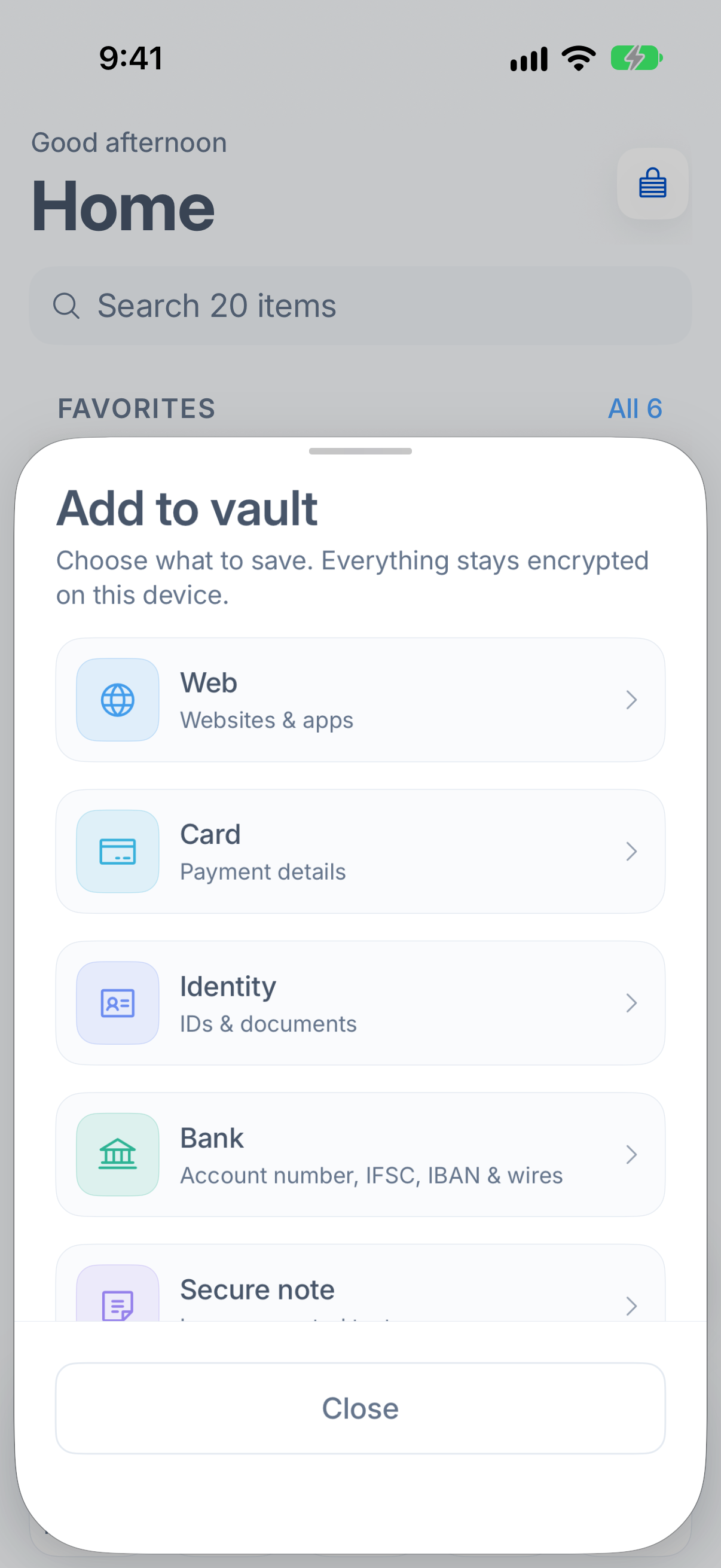
Zen Passwords is a password manager for iPhone, iPad and Mac that keeps these records next to your logins in one encrypted vault. It has seven item types: web logins, payment cards, bank details, identity documents, Wi-Fi networks, software licences and secure notes. Choosing a type sets the fields you get, and every type takes custom fields for whatever does not fit, such as the customer number your bank asks for on the phone.
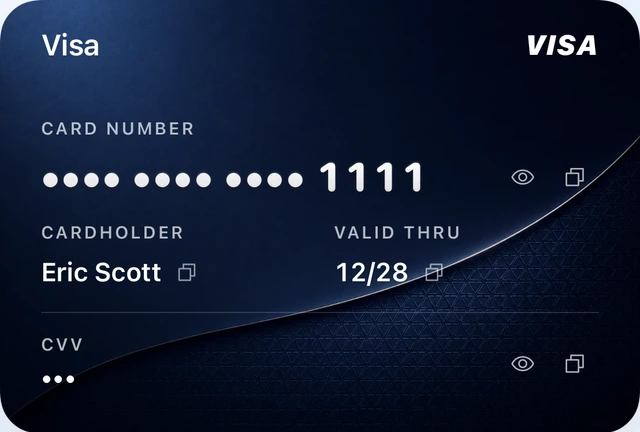
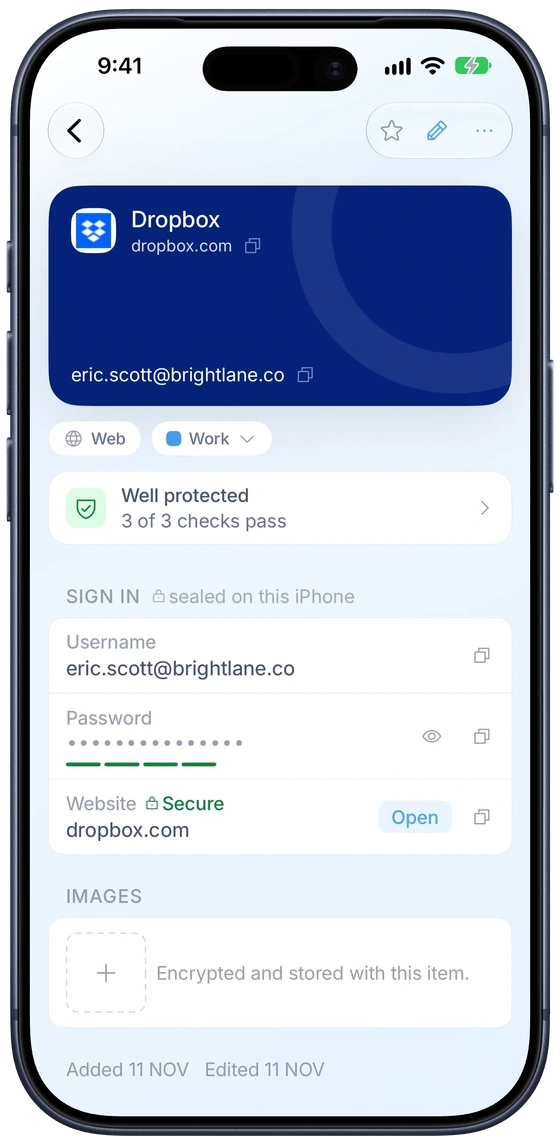
Version 1.7.6, released on 11 November 2026, opens each item as a card that leads with what matters: the account number on a bank account, the document number on a passport. Details below the card are grouped, you tap a row to copy it, and hidden values stay hidden until you reveal them. A health line such as “Card in date” flags a card before it expires.
Photos of the card, the passport page, the licence
You can attach photos to any entry, and they are encrypted with the entry itself. The back of a card with the issuer’s phone number, the photo page of a passport, or both sides of a licence sit with the record they belong to, instead of in your camera roll beside holiday pictures. On the free tier an entry with photos still counts as one item.
What it does not do
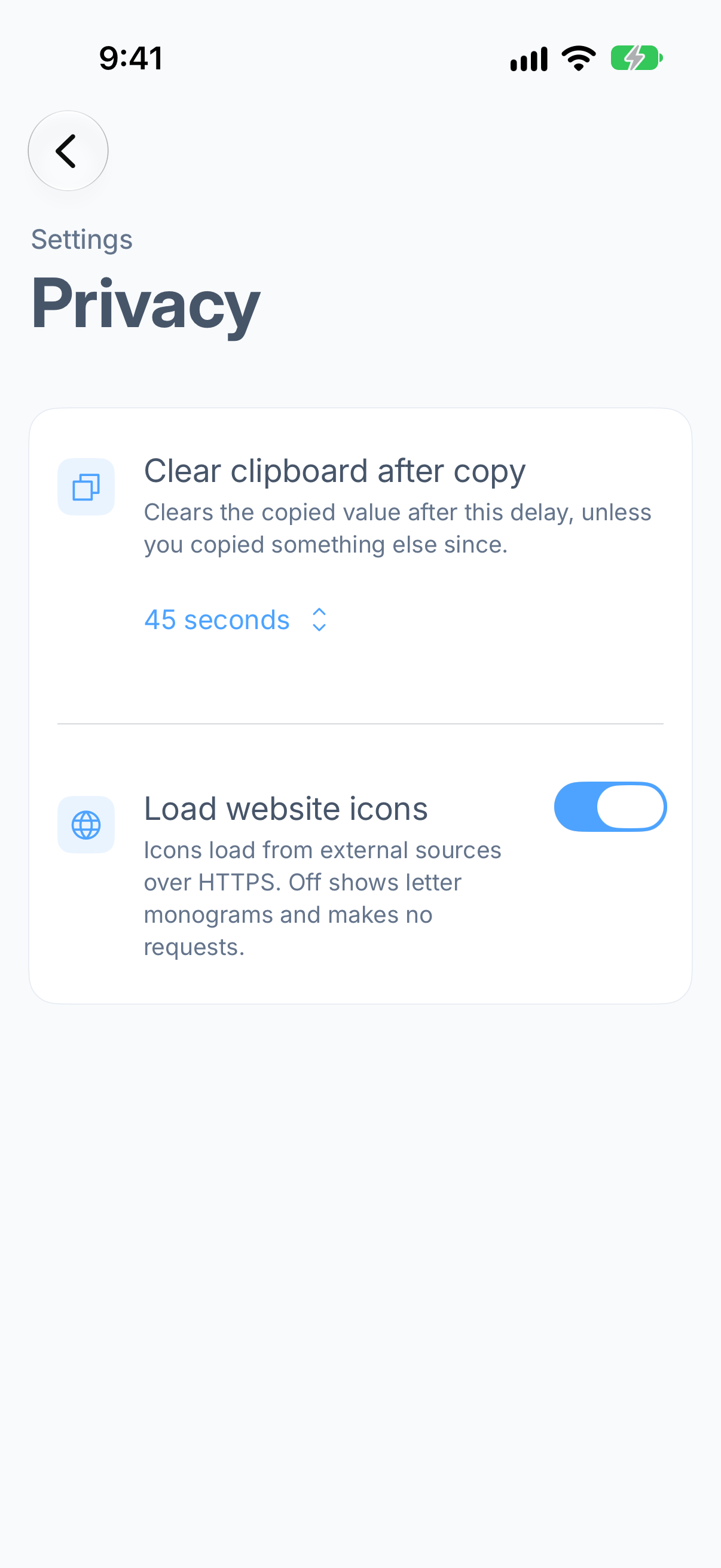
- It does not fill card forms. AutoFill in Zen Passwords covers logins, one-time codes and passkeys. For a card you copy the field you need, and the clipboard clears itself after 45 seconds by default.
- No Windows or Android apps and no browser extensions. Outside Apple devices you can read your vault, not edit it, in any browser at zenpasswords.com/vault.
- No sharing. A vault belongs to one person.
- No independent security audit yet. The key derivation code and a read-only terminal tool are open source; the app is not.
- The free tier is five active items. Premium removes the limit, and Apple shows the price and billing terms before you buy.
There is no Zen account. The vault is encrypted on your device with a master password we never receive, and optional sync runs through your own iCloud. Our Zen Passwords vs Apple Passwords comparison goes through the rest of the differences, including sharing and sync.
Is it safe to keep card details on your phone?
Safer than the usual alternatives, which are a plain note, a screenshot or a photo of the card. Wallet’s AutoFill cards sit in iCloud Keychain, which Apple says is secured with 256-bit AES encryption in storage and transit and cannot be read by Apple. A password manager vault is encrypted with your master password. An unlocked note, or a photo in your library, has none of that extra protection.
Two habits matter more than the app you pick. Keep a strong device passcode, because it is the gate to Wallet and to biometric unlock. And know your liability: under U.S. rules summarised by the Federal Trade Commission, you are not responsible for unauthorized charges when only a credit card number is stolen, while a debit card’s exposure grows the longer you wait to report it. That is one reason to put debit cards behind Apple Pay rather than typing their numbers into sites.
Who should simply keep using Wallet and Apple Passwords
If all you want is to pay faster online, Apple already solves it for free. Wallet AutoFill fills the number, expiry and security code in Safari and in apps, syncs to your other Apple devices, and Apple Pay keeps your real number away from the merchant. Adding a second app for that alone gives you two places to update when a card is reissued.
| If you mostly need to… | Use |
|---|---|
| Pay online and in shops on Apple devices | Apple Pay and Wallet AutoFill cards |
| Sign in to sites and apps, with passkeys and codes | Apple Passwords is enough for many people |
| Read out a bank account, IBAN or sort code on a call | A vault with a bank item, or a locked note |
| Keep passport, licence and ID numbers with photos | A vault with identity items and attachments |
| See cards, bank details and logins behind one lock | A full password manager such as Zen Passwords |
| Share records with family, or use Windows or Android | Not Zen Passwords; pick a cross-platform manager with sharing |
Using both: Apple for paying, a vault for the rest
Most people who outgrow Apple’s apps do best with both. Keep paying with Apple Pay and Wallet AutoFill, because nothing else fills a checkout form as smoothly on an iPhone. Keep the reference records, the bank details, the passport and licence numbers, the photo of the card’s back, in a vault built for them.
- Write a list of what is currently scattered: notes, screenshots, photos of documents.
- Add the cards you pay with to Wallet AutoFill, or to Apple Pay where the card supports it.
- Put bank details, IDs and licences into a vault as their proper item types, with photos attached.
- Delete the old notes and photos once each record is in its new home.
Our Apple Passwords alternative guide covers moving just the records Apple has nowhere to put, and the freelancers page shows how business bank details and client logins fit in one vault. If you are starting from another manager, the migration guide walks through importing.
Questions
Can you store credit cards in Apple Passwords?
No. The Passwords app has no card item. On iOS 26 and later, card numbers are saved in the Wallet app under AutoFill, synced through iCloud Keychain, and filled in at checkout.
Where are credit cards stored on iPhone?
In the Wallet app: tap the more button, then AutoFill, and authenticate to see, add or remove saved cards. On iOS 18 and earlier the list was in Settings > Apps > Safari > AutoFill > Saved Credit Cards. Cards set up for Apple Pay are stored separately, as a Device Account Number on the device.
Does iPhone AutoFill save the CVV?
According to Apple’s current iOS 26 and iOS 27 guide, AutoFill can enter the card number, expiration date and security code of a card saved in Wallet. Older advice that Safari never stores the code no longer matches Apple’s documentation.
Is it safe to store a credit card on iPhone?
Wallet AutoFill cards are encrypted in iCloud Keychain, which Apple cannot read, and Apple Pay never gives the merchant your real number. Both are far safer than a plain note or a photo of the card. Protect them with a strong device passcode.
Where should I store bank account details on iPhone?
Apple has no bank details field in Passwords or Wallet, so the built-in option is a locked note. A password manager with a bank item type, such as Zen Passwords, keeps the account number, IBAN and sort code as structured, encrypted fields next to your logins.