An offline password manager for iPhone keeps the encrypted vault on the phone itself, opens and fills logins with no network, and never needs an account on someone else's server. Good options exist: KeePassium and Strongbox Zero work on local KeePass files, Apple Passwords can be kept on one device by turning iCloud Keychain off, and our own app, Zen Passwords, keeps the vault on the device, and syncs through your own iCloud only when the device is signed in to it. The price of going offline is that nobody holds a second copy, so backups become your job.
Every claim about the other apps below comes from their own sites and App Store listings as of 14 November 2026.
What "offline" should mean for a password manager
Plenty of cloud password managers keep a cached copy on your phone so you can read logins on a plane. That is offline access to a vault whose home is a server. An offline password manager is the reverse: the vault lives on the device, and any copy elsewhere exists only because you made one.
Five tests separate the two. Run them against any app you are considering, including ours.
- It opens in Airplane Mode. Unlocking, searching, copying and AutoFill all work with Wi-Fi and cellular off.
- There is no account. You create a vault with a master password, not an email address and a sign-in.
- Sync is optional and visible. You can see whether it is on, and turning it off leaves a working vault behind.
- Every network feature is named and opt-in. Website icons, breach lookups and cloud storage each have their own switch.
- You can leave with your data. It exports to an encrypted file you control, ideally one you can open without the original app.
What still works in Zen Passwords with no network
The vault is encrypted and decrypted on the device, so day-to-day use needs no connection. Our iCloud sync guide says it plainly: iCloud only needs a connection when devices have to catch up with each other. Here is the feature-by-feature version.
| Feature | Works offline? | Why |
|---|---|---|
| Unlock (master password, Face ID, Touch ID) | Yes | Keys are derived on the device |
| AutoFill of logins in Safari and apps | Yes | Filled from the local vault |
| One-time codes | Yes | Computed from the saved secret and the clock |
| Passkeys | Yes, in the vault | The site you sign in to still needs a connection |
| Reused, weak and stale checks | Yes | Run on the device against your own vault |
| Breach check (Premium) | No, opt-in | Compares against known breaches online |
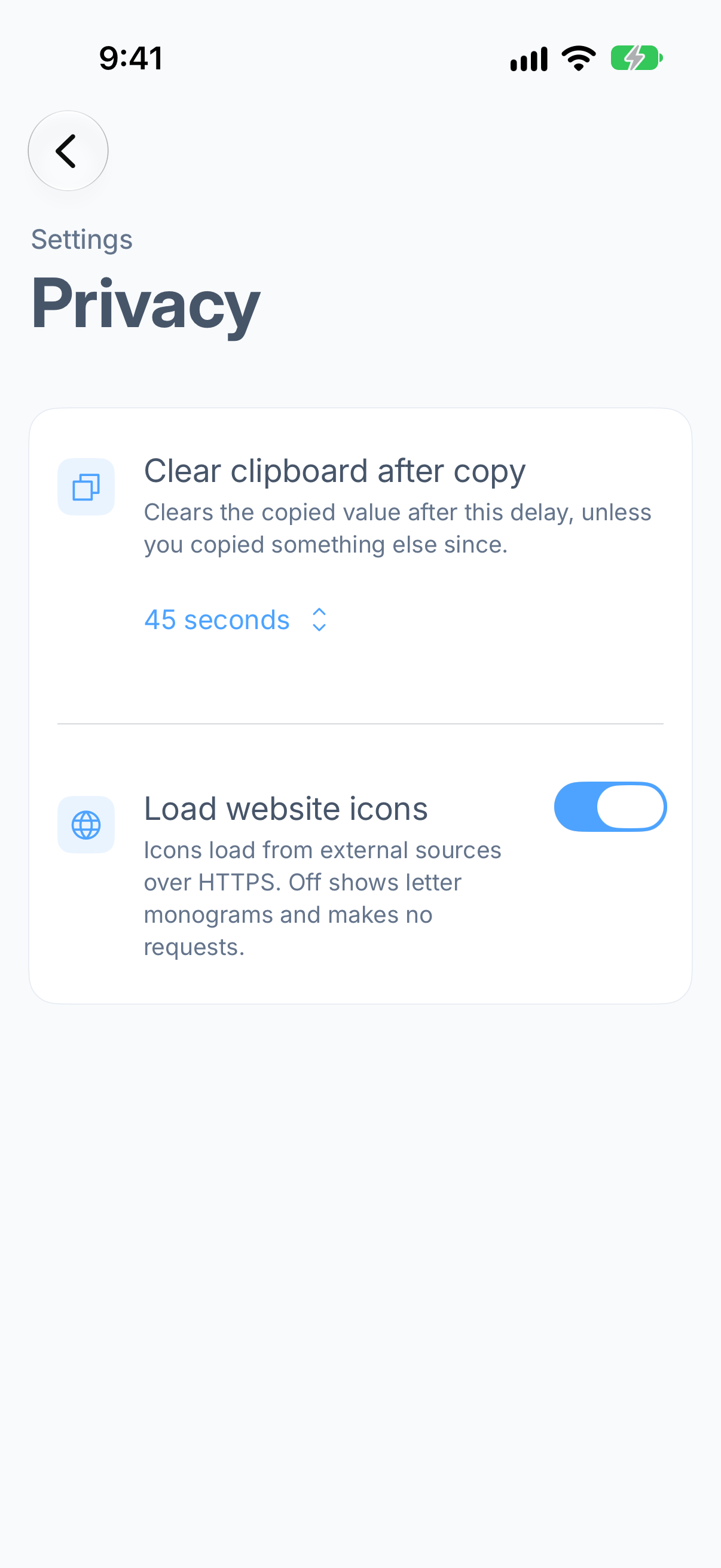
| Website icons | No, can be off | Fetched over HTTPS only if you allow it |
| iCloud sync | On when signed in to iCloud | Needs a network to catch devices up |
| Encrypted backup export | Yes | Written to a folder you choose |
One-time codes deserve a word, because people assume a code must come from somewhere. A standard authenticator code is calculated from a secret saved when you set up two-factor and the current time, as defined in RFC 6238. Nothing is fetched. Zen Passwords stores that secret on the login it belongs to, so AutoFill offers the password and then the code even in Airplane Mode. Passkeys sit in the vault the same way, although signing in with one still means talking to the website.
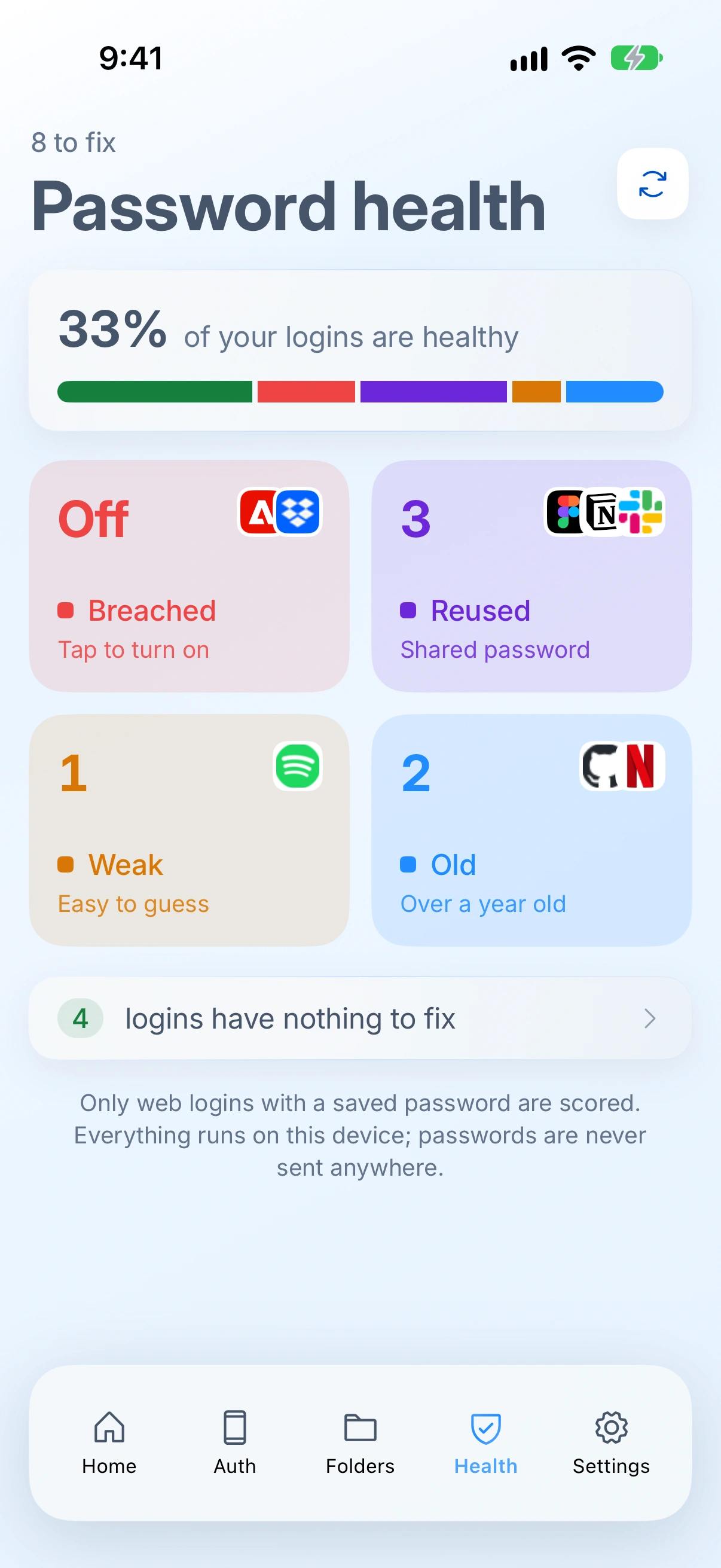
The two features that do touch the network are opt-in and visible. The breach check sits behind Premium and compares saved logins against known breaches using k-anonymity, so no password and no full fingerprint leaves the phone. Website icons have their own switch in Privacy settings; with it off, the app shows letter monograms and makes no requests for them.
Sync off vs iCloud sync: the trade-off
Zen Passwords has no Zen account and no publisher server, so there are only two places your vault can be: on this device alone, or also in your own private iCloud under your Apple ID. With sync on, the vault travels as ciphertext and iCloud never sees it decrypted. With sync off, it never leaves the device at all.
| Sync off (offline only) | iCloud sync on | |
|---|---|---|
| Where the vault is | This device only | Your devices plus your private iCloud, encrypted |
| Network needed | Never, for daily use | Only when devices catch up |
| Lose or wipe the phone | Vault is gone unless you made a backup | Other devices still have it |
| Delete an item by mistake | Gone unless backed up | Deleted everywhere; sync copies deletions |
| Use it on iPad or Mac | Separate vault, or move a backup by hand | Same vault on each device |
| Who could reach the encrypted file | Someone holding your unlocked device | Also anyone who gets into your Apple ID storage |
Neither row is free. Sync protects you from losing the phone. Offline protects you from your vault existing anywhere else. Either way the encryption holds; what changes is how many copies exist and who has to look after them. If you want the longer reasoning on why a copied vault file is still safe, what protects your passwords if a backup leaks walks through the key derivation that guards it.
Your backup is now your job: scheduled encrypted backups
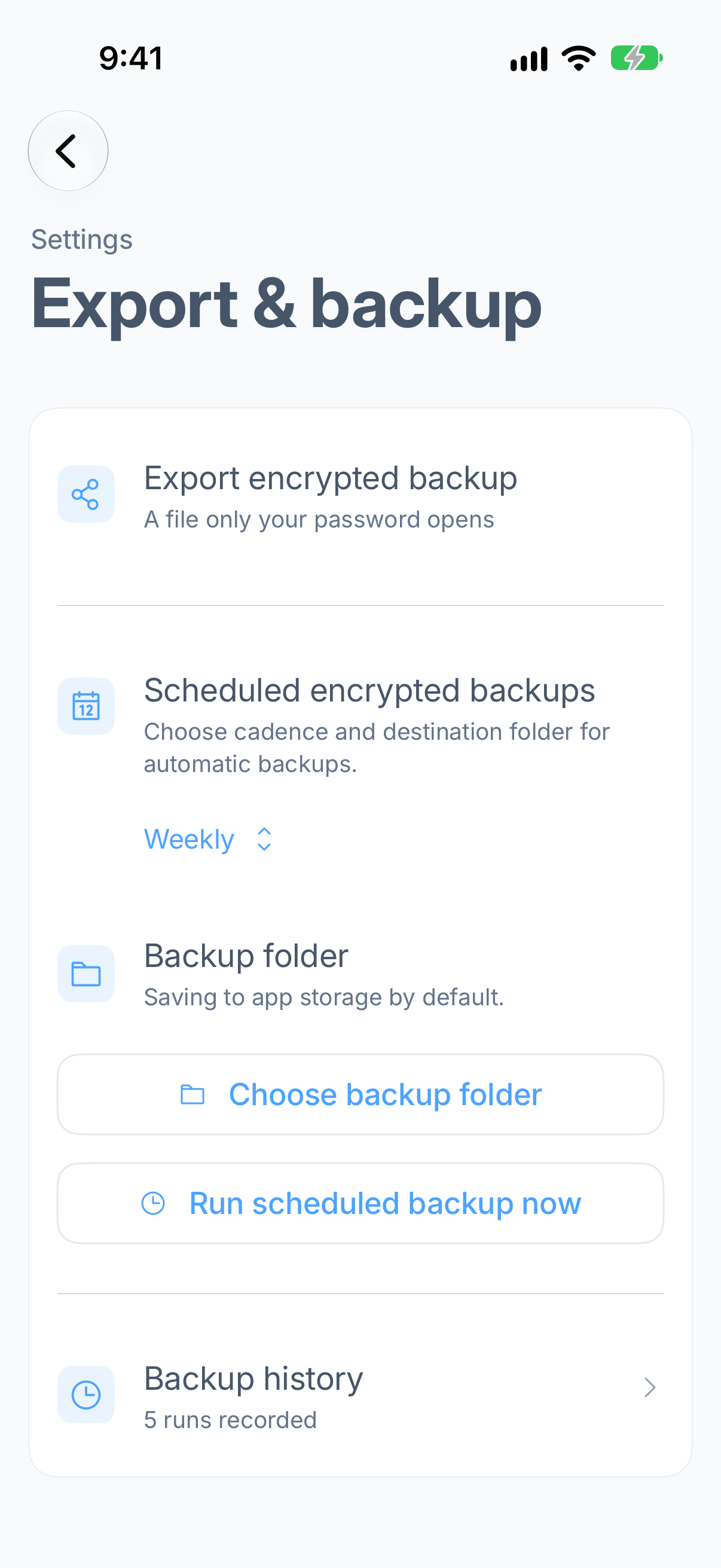
With sync off there is no second copy unless you make one, and Zen Passwords cannot restore a vault we never had. The app handles most of the work: it exports an encrypted backup on demand or on a schedule, and the file opens only with the master password it was made under, plus your Secret Key if your vault has one. Set it up the day you create the vault.
- In the app's Settings, open Export & backup and check Scheduled encrypted backups. Weekly is the default and suits most people.
- Tap Choose backup folder. By default backups save to the app's own storage, which sits on the same phone, so pick a folder that will survive losing it.
- Tap Run scheduled backup now once, so the first copy exists today.
- Every few weeks, export a backup and move it to a computer or drive you control. The file is encrypted, so the destination only decides whether you can reach it after a loss.
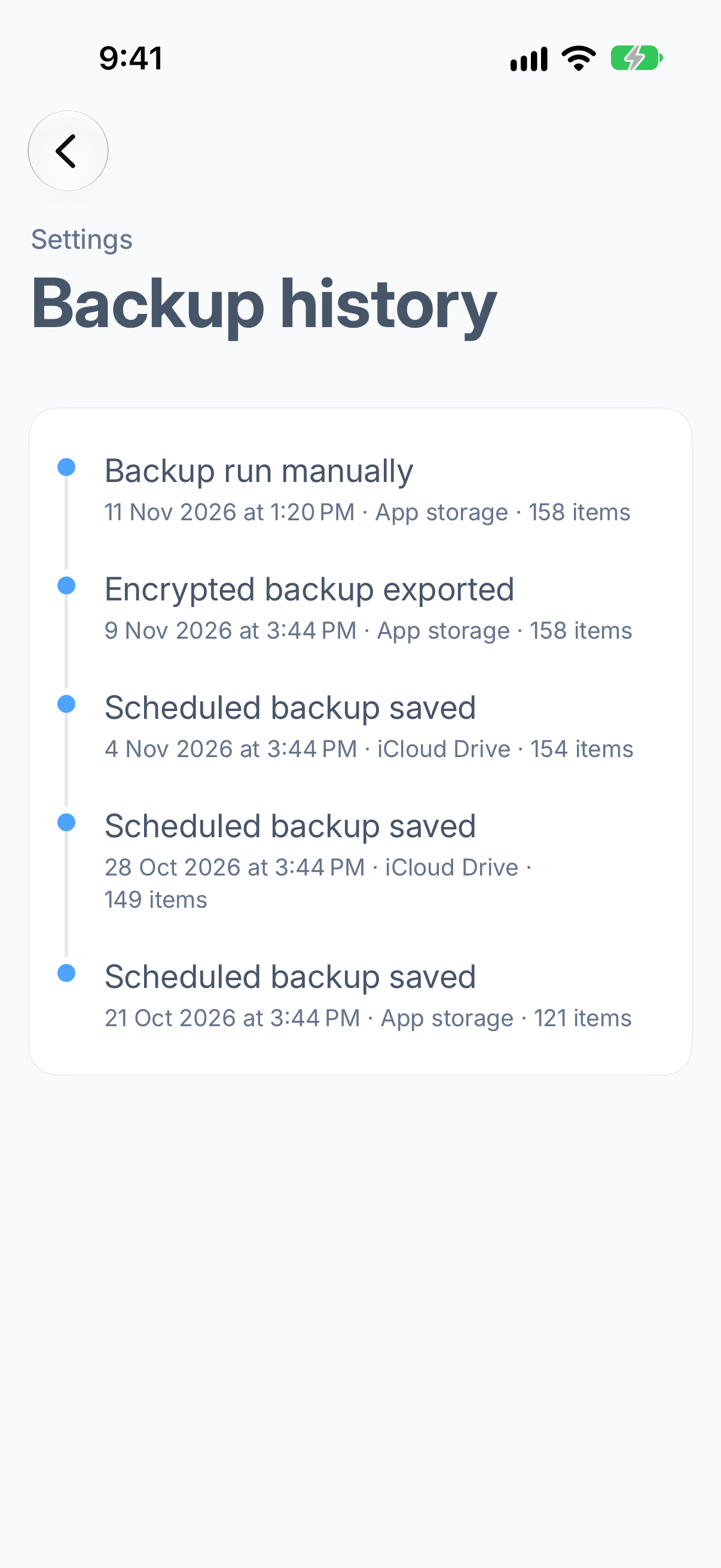
- Check Backup history now and then. A schedule that quietly stopped looks the same as one that works until you look.
- Keep your recovery key or social recovery set up and stored apart from the phone. A backup still needs the credentials that open it.
Opening the vault without the app
An offline vault raises a fair worry: what if the app stops working, or the only device is gone? Zen Passwords answers it with an open-source terminal tool, zen-cli, that opens an exported encrypted backup with no app and no account. It is read only, so it cannot add, edit, delete or sync. It runs on a Mac or on Linux, and you build it from source, which means you can read every line before it touches your vault. It suits someone comfortable at a command line; there is no Windows version.
The key derivation that both the app and the tool use is published too, at zen-vault-core, with test vaults made by the app. The rest of the app is closed source and has not had an independent audit yet. KeePass apps answer the same worry differently: the database format is open, so any compatible app on any platform can open the file.
Offline password managers for iPhone, compared
These are the apps we found that pass the Airplane Mode test by design, with prices from their US App Store listings as of 14 November 2026.
| App | Where the vault lives | Network | AutoFill and codes | Price | Best for |
|---|---|---|---|---|---|
| Zen Passwords (ours) | Device; your own iCloud if signed in | Icons, breach check opt-in | Yes: logins, codes, passkeys | Free for 5 items; Premium in-app | Cards, bank details, IDs too |
| KeePassium | KeePass file, local or via Files | "Offline by default" | Yes: logins, codes, passkeys | Free (1 database); Pro $79.99 once | Open source, audited, KeePass |
| Strongbox Zero | Local KeePass or Password Safe file | No networking code | Codes; AutoFill not listed | $99.99 upfront | Strictest no-network setup |
| Strongbox | Local file or your cloud | Cloud optional | Yes: logins, codes, passkeys | Free; Pro in-app | KeePass, may sync later |
| Apple Passwords, Keychain off | This device only | Built into iOS | Yes: logins, codes, passkeys | Free | Logins on one device |
| Password Safe | Device; sync optional in Pro | Sync optional (Pro) | Yes: logins, passkeys; codes in app | Free to 50 entries; Pro in-app | A free offline start |
KeePassium and Strongbox: the KeePass route
KeePass apps keep your vault in a standard encrypted file, which is their great strength: the same file opens in KeePassXC on a desktop. KeePassium's listing describes it as "offline by default", open source and independently audited by Cure53, with a free plan limited to one database and a $79.99 one-time Pro app. By default it reaches cloud storage only through the system Files picker, so the app itself never talks to your storage provider. Its last US App Store update was version 2.5 in November 2025.
Strongbox Zero goes further. Its developer says it "does not have any built-in networking code", so you move databases in through the Files app, email or file sharing. At $99.99 upfront it is the most expensive option here, and its developer suggests trying the regular Strongbox first. Both read KeePass database files, which matters only if you already keep one on a computer.
Apple Passwords with iCloud Keychain off
The free option is already on your iPhone. Apple confirms that when you turn off iCloud Keychain, password, passkey and credit card information is stored locally on your device. Two costs come with it: you lose access to shared password groups, and the Passwords app is built around credentials, with no home for bank details, IDs or secure notes. Our piece on whether Apple Passwords can store credit cards covers that gap. If logins on one phone are all you need, this is enough.
Password Safe and PanicVault
Password Safe calls itself offline-first, with no account, and is free up to 50 entries; sync and Face ID unlock are Pro features. PanicVault is a $4.99 KeePass app with AutoFill and codes, and its own site ranks it top for this search. It has very few App Store ratings so far, so test it with care.
Who should not go offline-only
An offline vault is a good fit for one person on Apple devices who will keep a backup. It is the wrong choice if any of these describe you:
- You will not keep backups. One lost phone without a backup is every password gone, and no vendor can restore it.
- You share logins with a partner, family or team. Zen Passwords has no sharing, and Apple's shared groups stop working with iCloud Keychain off.
- You need your passwords on Windows, Android or a borrowed computer. Zen Passwords has no Windows or Android app. Its web vault can read your vault in a browser, but it needs a network and your Apple Account.
- You want someone to call. We never receive your master password, so support cannot let you back in.
- You are moving an older relative onto a password manager. A synced vault that survives a dropped phone matters more for them than avoiding the cloud.
For many people, the sensible middle is sync through their own iCloud with a scheduled encrypted backup on top. Zen Passwords supports both; you can turn on iCloud sync later without starting over.
Where offline earns its keep: travel
The clearest case for an offline vault is a trip. On a plane, a foreign SIM with no data, or a hotel network that blocks half the internet, a vault on the device opens exactly as it does at home, and there is no account to sign into over a network you do not trust. Our password manager for travel page has a checklist for the twenty minutes before you fly.
Try it in Airplane Mode before you commit
Zen Passwords is free for five active items, with AutoFill, codes, backups and recovery all included on those five. Add your email, your bank and a couple of logins, turn on Airplane Mode, and run the five tests above. If it passes and fits how you work, Premium removes the item limit; Apple shows the price and terms before you buy. You can see the real screens on the Zen Passwords app page or go straight to the App Store.
Questions
Is there a password manager for iPhone that works completely offline?
Yes. Zen Passwords, KeePassium, Strongbox Zero and Password Safe keep the vault on the device and work with no network, and Apple Passwords keeps passwords on one device when iCloud Keychain is off. Test any of them in Airplane Mode before moving your real logins.
Does AutoFill work without internet on iPhone?
It does when the password manager keeps its vault on the device. Zen Passwords fills logins and one-time codes from the local vault in Airplane Mode; only the website you are signing in to needs a connection.
What happens if I lose my iPhone with an offline password manager?
If sync was off and you never made a backup, the vault is gone, and no vendor can restore it. Schedule encrypted backups to a folder that is not only on the phone, or turn on sync through your own iCloud.
Is an offline password manager safer than a cloud one?
It removes a copy of your vault from someone else's server, which shrinks what can be breached. It adds the risk of losing everything with one device, so it is safer only if you keep backups.
Can I use Apple Passwords without iCloud?
Yes. Apple says that when you turn off iCloud Keychain, password, passkey and credit card information is stored locally on your device. You lose access to shared password groups.
Do I need an account to use Zen Passwords offline?
No. There is no Zen account. You create a vault with a master password on the device, and to keep it offline you turn off iCloud for Zen Passwords in the iOS Settings app.