These three settings decide what happens in the gap between you opening the vault and somebody else picking up your phone. The defaults are deliberately cautious, which occasionally means the app asks you to unlock more often than you would like. That is adjustable.
Face ID, Touch ID and Optic ID
Optional on supported devices, and off until you switch it on. With it on you unlock the way you unlock everything else. With it off you type the master password each time, which is slower and is the right answer for some people. Neither choice changes how the vault is encrypted: biometrics unlock the vault, they are not the key to it.
Auto-lock
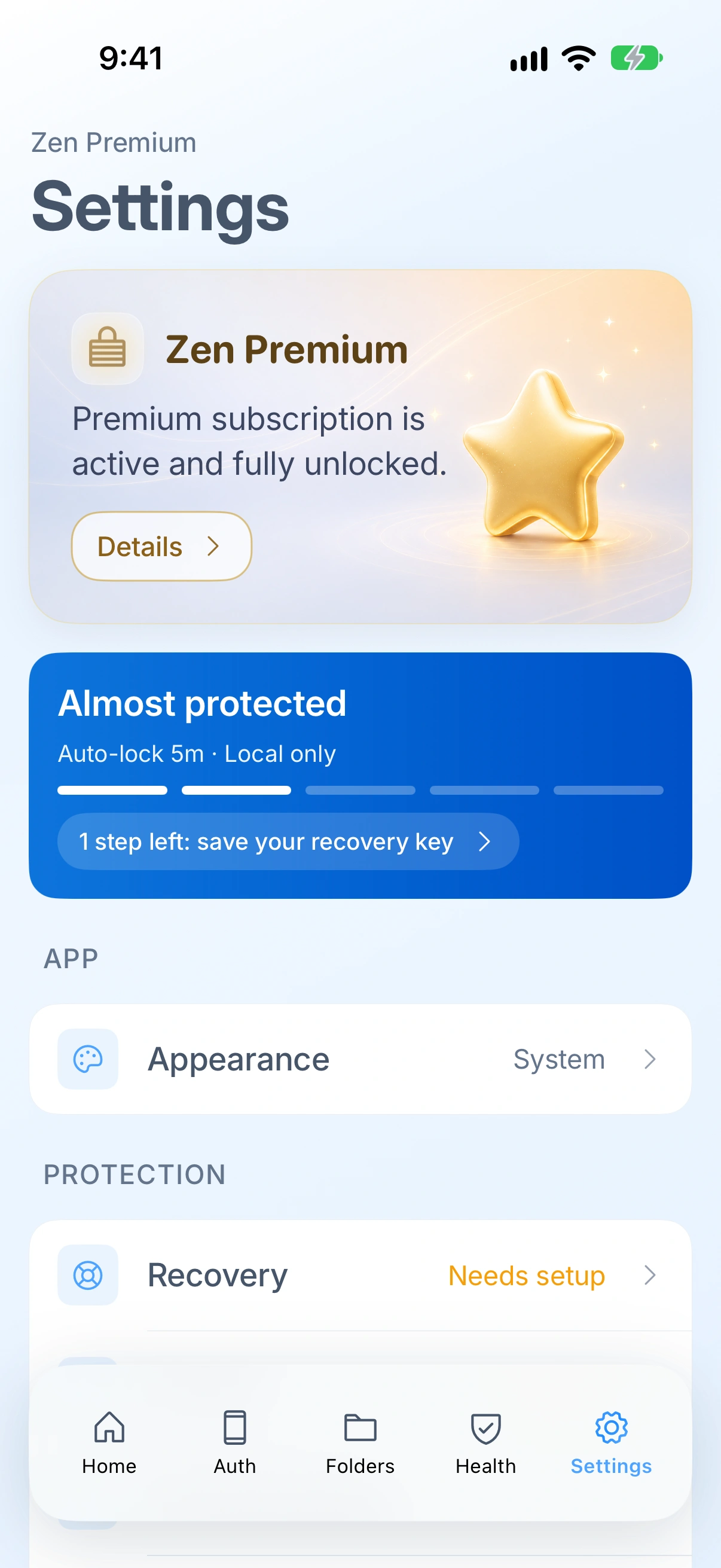
By default the vault locks when you leave the app, and also after 5 minutes without a tap. Both are in Settings, under Security and lock. Shorten the timer if you are often somewhere with other people; lengthen it if you are filling a lot of logins in one sitting and the re-unlocking is getting in the way.
The clipboard timer
When you copy a password, it clears itself from the clipboard after 45 seconds by default. You can change that to 90 seconds, 3 minutes or off in Settings, under Privacy. It matters because the clipboard is shared across apps. Zen Passwords keeps copies on this device only, so they never travel through Universal Clipboard, but a password left there is one any app you open can read.
Appearance
A wide choice of light and dark themes, or follow the system setting. Cosmetic rather than security, but a vault you open several times a day is worth having look like it belongs on your phone.
Check the behavior after changing a setting
Use a harmless test entry to check auto-lock and clipboard clearing, rather than copying a real password just to test it. Keep recovery prepared before relying on biometric unlock. If you want to copy less often, set up AutoFill.