Work through these in order. The most common causes come first.
1. Does the entry have a web address on it?
AutoFill matches a saved entry to the page in front of you using the address stored on that entry. An entry with no address will never be suggested anywhere, no matter how correct the username and password are. Entries typed in by hand are the usual culprits, because there is nothing to fill the address in automatically.
Open the entry, add the address of the sign in page, and try again.
2. Is AutoFill on for this device?
The AutoFill provider setting is a system setting and it is per device. Turning it on for your iPhone does not turn it on for your Mac, even with sync on, because it is not part of the vault. A vault that syncs perfectly and still never fills on the new iPad is almost always this.
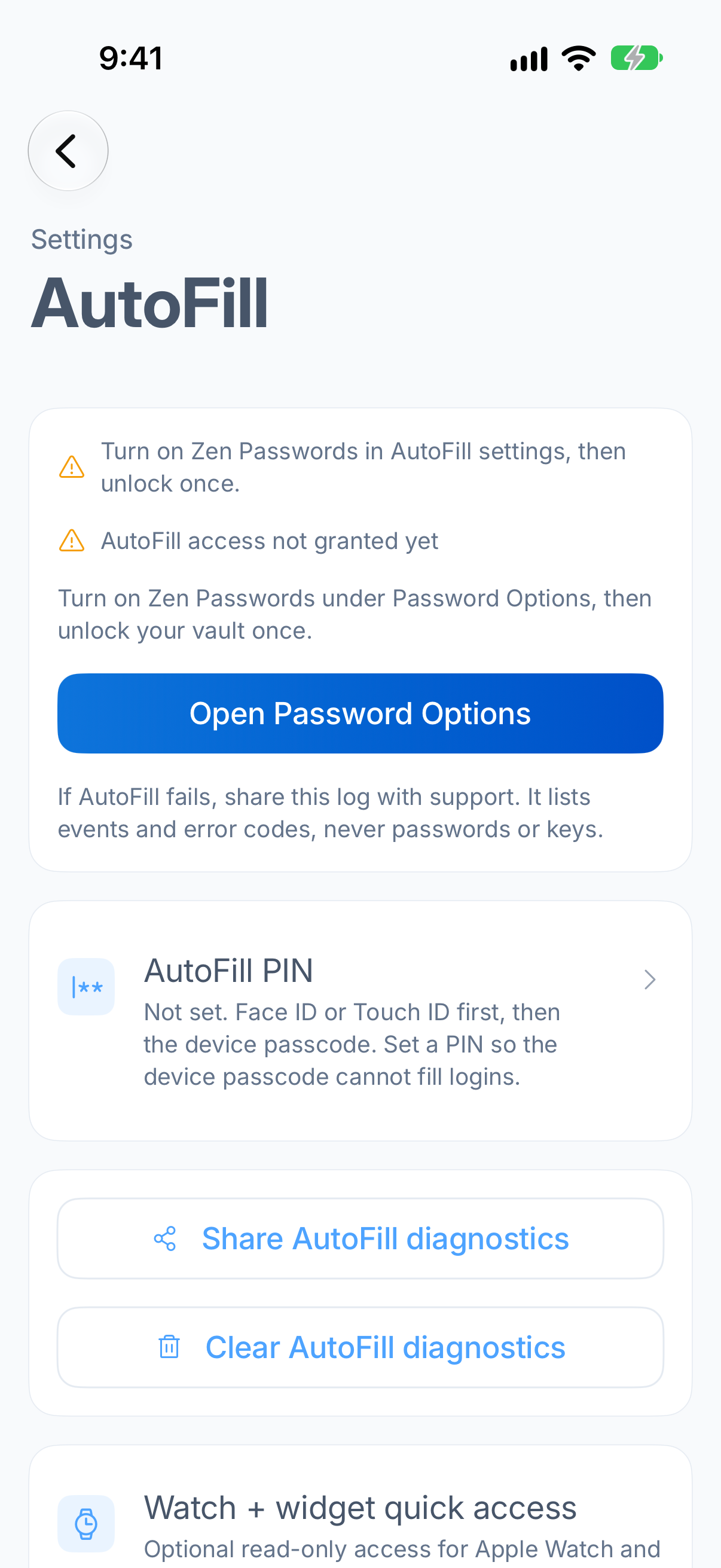
3. Is the vault locked?
AutoFill keeps working while the app is locked. It needs you to unlock Zen Passwords once after setup or an update, again after the master password day limit you set, and after new items sync in from another device. Open the app, unlock it, and go back to the sign in page.
4. Does the address actually match?
Plenty of large services sign you in on a different domain from the one you browse. If the entry says one address and the sign in page is on another, there is no match to offer. Each login holds one address. Save the parent domain so it covers its sign in subdomains, or save a second login for a sign in page on a different domain.
Check the destination before changing an address
Only add a sign-in domain after confirming that it belongs to the service you intend to use. Do not edit a vault entry to make a suspicious link match. If the login appears but a code does not, check one-time-code setup.